> ## Documentation Index
> Fetch the complete documentation index at: https://docs.helicone.ai/llms.txt
> Use this file to discover all available pages before exploring further.
# Bubble.io LLM Observability and Logs
> Learn how to integrate Helicone with your Bubble application for LLM observability and logging.
This integration method is maintained but no longer actively developed. For the best experience and latest features, use our new [AI Gateway](/gateway/overview) with unified API access to 100+ models.
## Introduction
Bubble is a no-code platform that allows you to build web applications without writing code. This guide will show you how to integrate Helicone with your Bubble application to get observability and logging for your LLM API calls.
## Integration Steps
Log into [Helicone](https://www.helicone.ai) or create an account. Once you have an account, generate an [API key](https://helicone.ai/developer).
Make sure to generate a [write-only API key](helicone-headers/helicone-auth).
In your Bubble application, go to the API section and set up your LLM provider (e.g., OpenAI, Anthropic).
See Figure 1 below for an example configuration.
In the API settings, add the following headers:
1. Add a private header for your Helicone API key:
* Name: `Helicone-Auth`
* Value: `Bearer your_helicone_api_key`
2. Add a private header for your LLM provider's API key:
* For OpenAI:
* Name: `Authorization`
* Value: `Bearer your_openai_api_key`
* For Anthropic:
* Name: `X-API-Key`
* Value: `your_anthropic_api_key`
Read about how to connect other LLM providers [here](/getting-started).
Make sure to mark the API key headers as private to keep them secure.
See Figure 2 below for an example header configuration.
Change the API endpoint to use Helicone's proxy. For example, if you're using OpenAI:
```
https://oai.helicone.ai/v1/chat/completions
```
Make sure to use the appropriate Helicone endpoint for your LLM provider.
To track requests by user, add another header:
* Name: `Helicone-User-Id`
* Value: `"current_user's_email"` (or any unique identifier)
You can make this dynamic by using Bubble's expression editor to insert the current user's email or ID.
## Anthropic Example Configurations
*Figure 1: Configure base URL and Anthropic API Key*
*Figure 2: Configure Helicone Key and Anthropic Version*
## Video Tutorial
For a detailed walkthrough of the integration process, check out this video tutorial:
## Verifying the Integration
After setting up the integration:
1. Make a test API call from your Bubble application.
2. Go to your Helicone dashboard.
3. Check the "Requests" section to see if your test call appears.
4. You can view detailed information about each request, including cost and performance metrics.
## Troubleshooting
* If you don't see requests in your Helicone dashboard, double-check that you've updated the API endpoint to use Helicone's proxy.
* Ensure that all required headers are correctly set and that API keys are valid.
* If using user tracking, make sure the `Helicone-User-Id` header is properly formatted and not marked as private.
For more information and advanced features, check out the [Helicone documentation](https://docs.helicone.ai).
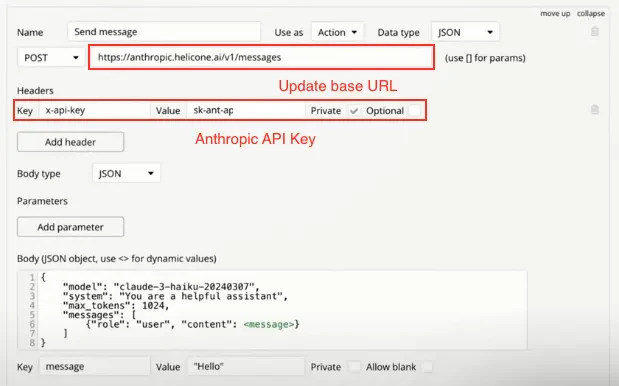 *Figure 1: Configure base URL and Anthropic API Key*
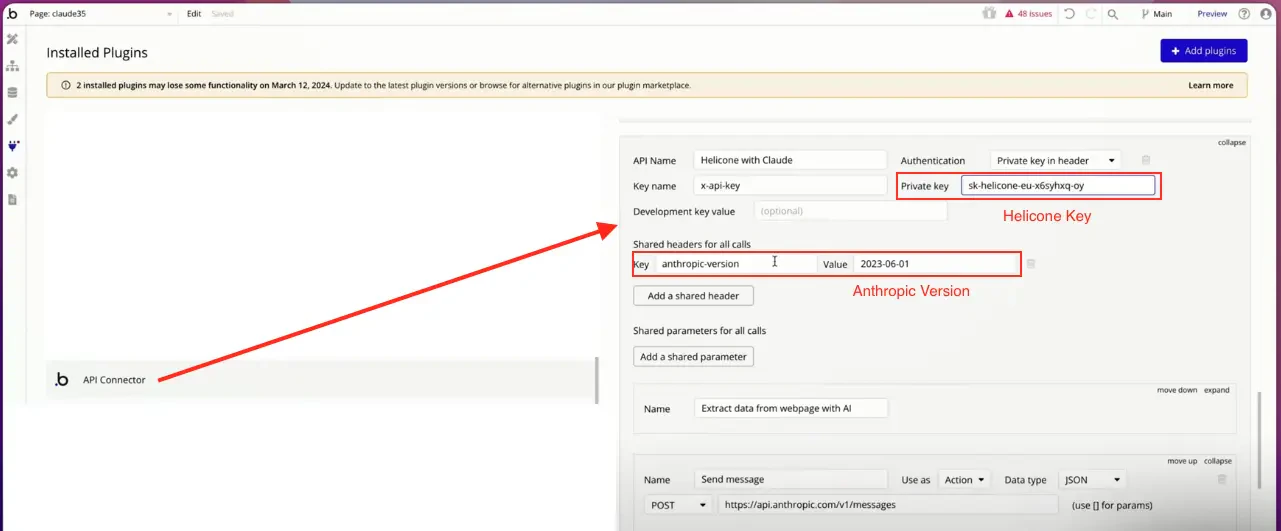 *Figure 2: Configure Helicone Key and Anthropic Version*
## Video Tutorial
For a detailed walkthrough of the integration process, check out this video tutorial:
## Verifying the Integration
After setting up the integration:
1. Make a test API call from your Bubble application.
2. Go to your Helicone dashboard.
3. Check the "Requests" section to see if your test call appears.
4. You can view detailed information about each request, including cost and performance metrics.
## Troubleshooting
* If you don't see requests in your Helicone dashboard, double-check that you've updated the API endpoint to use Helicone's proxy.
* Ensure that all required headers are correctly set and that API keys are valid.
* If using user tracking, make sure the `Helicone-User-Id` header is properly formatted and not marked as private.
For more information and advanced features, check out the [Helicone documentation](https://docs.helicone.ai).
*Figure 2: Configure Helicone Key and Anthropic Version*
## Video Tutorial
For a detailed walkthrough of the integration process, check out this video tutorial:
## Verifying the Integration
After setting up the integration:
1. Make a test API call from your Bubble application.
2. Go to your Helicone dashboard.
3. Check the "Requests" section to see if your test call appears.
4. You can view detailed information about each request, including cost and performance metrics.
## Troubleshooting
* If you don't see requests in your Helicone dashboard, double-check that you've updated the API endpoint to use Helicone's proxy.
* Ensure that all required headers are correctly set and that API keys are valid.
* If using user tracking, make sure the `Helicone-User-Id` header is properly formatted and not marked as private.
For more information and advanced features, check out the [Helicone documentation](https://docs.helicone.ai).