> ## Documentation Index
> Fetch the complete documentation index at: https://docs.helicone.ai/llms.txt
> Use this file to discover all available pages before exploring further.
# Xcode Integration (AI Gateway)
> Configure Xcode's Intelligence model provider to route through Helicone's AI Gateway for observability.
This guide shows how to add Helicone as a model provider in Xcode so your chats route through the Helicone AI Gateway and show up in your Helicone dashboard.
## Prerequisites
* A Helicone account and API key
* Org/provider keys configured in Helicone (so models can be listed)
## Steps
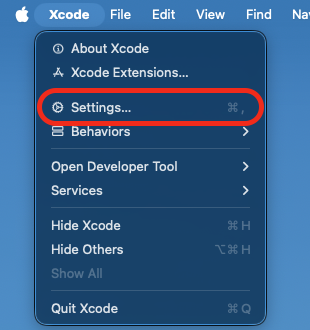
1. Open Xcode Settings
* Xcode → Settings…
 2. Add Helicone as a model provider
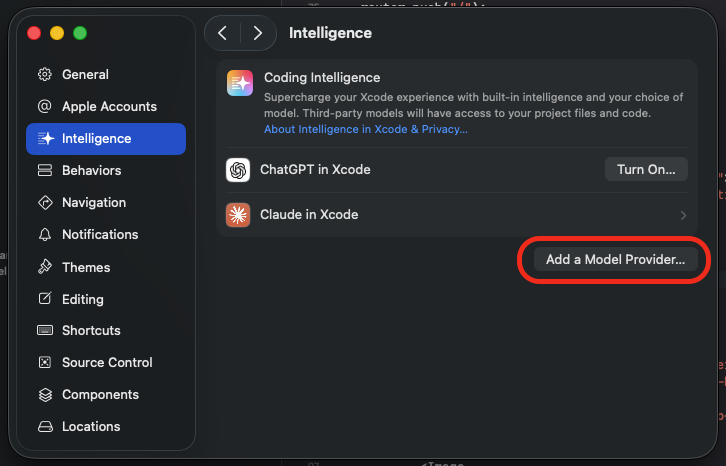
* Select the Intelligence tab
* Click "Add a model provider…"
2. Add Helicone as a model provider
* Select the Intelligence tab
* Click "Add a model provider…"
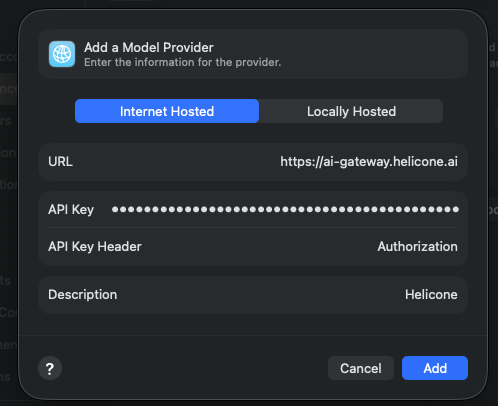
 * Fill the form with:
* URL: `https://ai-gateway.helicone.ai`
* API Key: `Bearer `
* API Key Header: `Authorization`
* Description: `Helicone` (you can name this however you like)
* Fill the form with:
* URL: `https://ai-gateway.helicone.ai`
* API Key: `Bearer `
* API Key Header: `Authorization`
* Description: `Helicone` (you can name this however you like)
 3. Confirm models are available
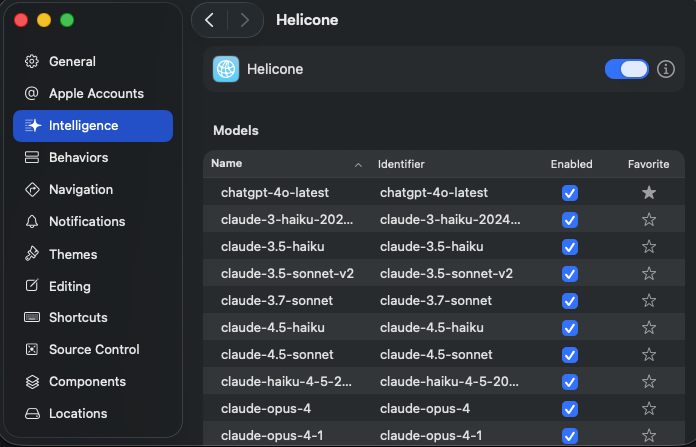
* After saving, Xcode should list available models from Helicone
* There are many models; use Favorites to pin the ones you use most
3. Confirm models are available
* After saving, Xcode should list available models from Helicone
* There are many models; use Favorites to pin the ones you use most
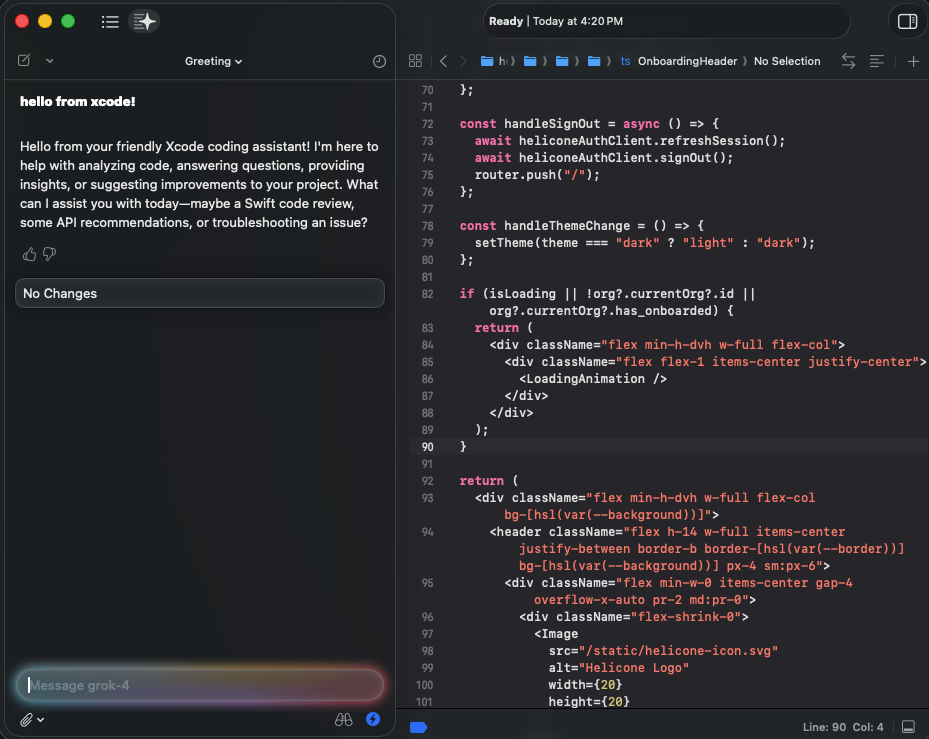
 4. Start chatting and view logs in Helicone
* Use the chat in Xcode with your selected model
* Open the Helicone dashboard to see your requests, tokens, and costs
4. Start chatting and view logs in Helicone
* Use the chat in Xcode with your selected model
* Open the Helicone dashboard to see your requests, tokens, and costs
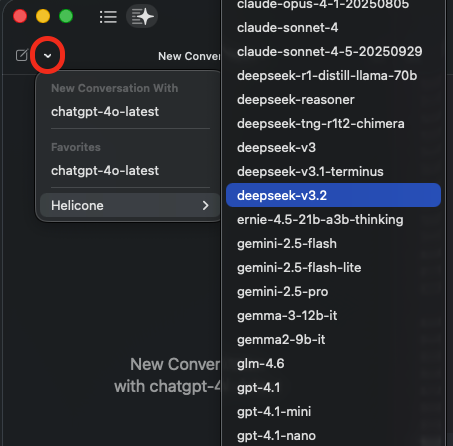
 5. Switch chat model
* In the chat widget, press the dropdown to select a new model.
5. Switch chat model
* In the chat widget, press the dropdown to select a new model.
 ## Notes
* URL points to the Helicone AI Gateway. Your Helicone API key is sent via the `Authorization` header.
* If you don’t see models, verify your org/provider keys are set in Helicone and that your key has access.
## Notes
* URL points to the Helicone AI Gateway. Your Helicone API key is sent via the `Authorization` header.
* If you don’t see models, verify your org/provider keys are set in Helicone and that your key has access.