> ## Documentation Index
> Fetch the complete documentation index at: https://docs.helicone.ai/llms.txt
> Use this file to discover all available pages before exploring further.
# Using Custom Properties to Segment Data
> Derive powerful insights into costs and user behaviors using custom properties in Helicone. Learn to track environments, user types, and more.
Use [Custom Properties](features/advanced-usage/custom-properties) to segment your data and derive meaningful insights. This feature can help you understand the costs and behavior of different user groups, and gain other insights to help inform strategic decisions and optimizations.
Here are some methods that we recommend for data segmentation:
Tracking Environments
User Segmentation
Advanced Segmentation
If you have other use cases, we'd love to know! Send us an
[email](mailto:help@helicone.ai) or [schedule a
call](https://cal.com/team/helicone/helicone-discovery) with us.{" "}
## Use Case 1: Tracking Environments
Organizations use **Custom Properties** to track different environments (i.e. development, staging, and production). To distinguish between these environments, you can create a `Helicone-Property-Environment` property.
### Quick Start
```python theme={null}
client.chat.completions.create(
# ...
extra_headers={
"Helicone-Property-Environment": "development",
}
)
```
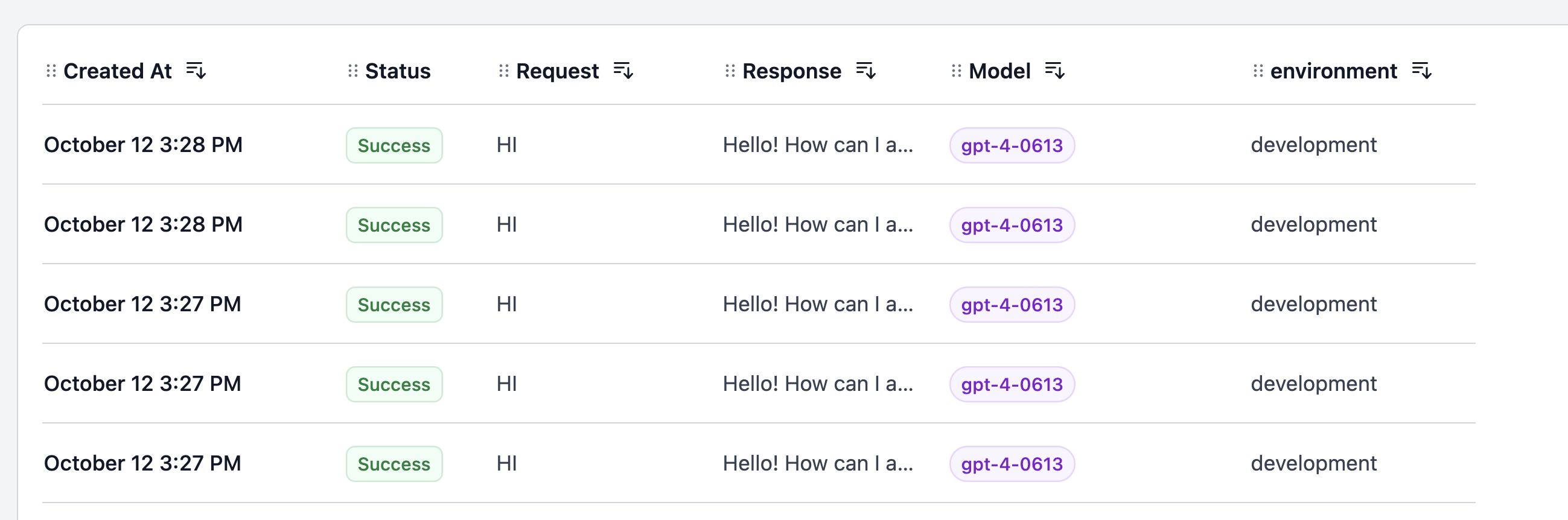
You will then see the `Environment` property appear in the Requests page.
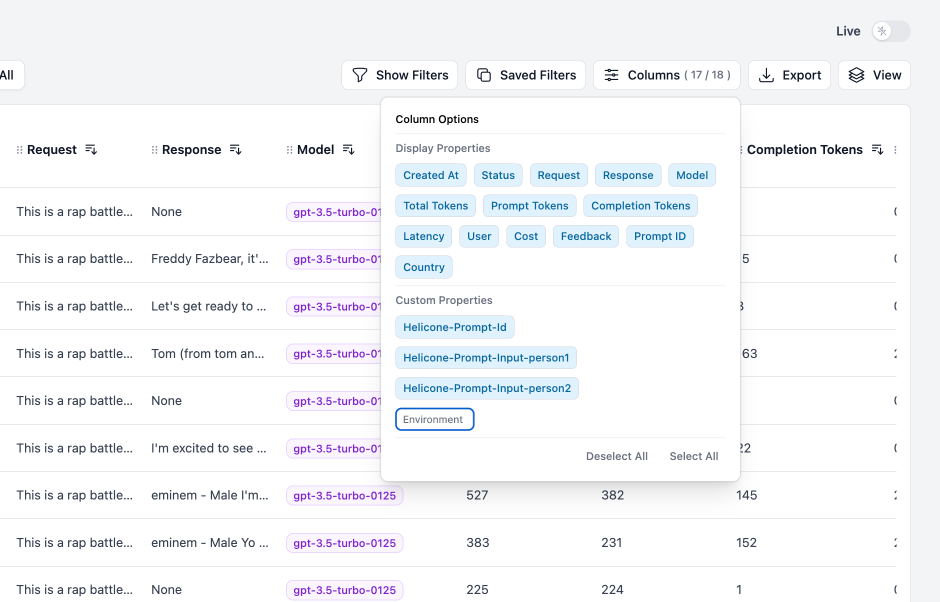
 You can choose to hide the custom property by deselecting it under `Columns`.
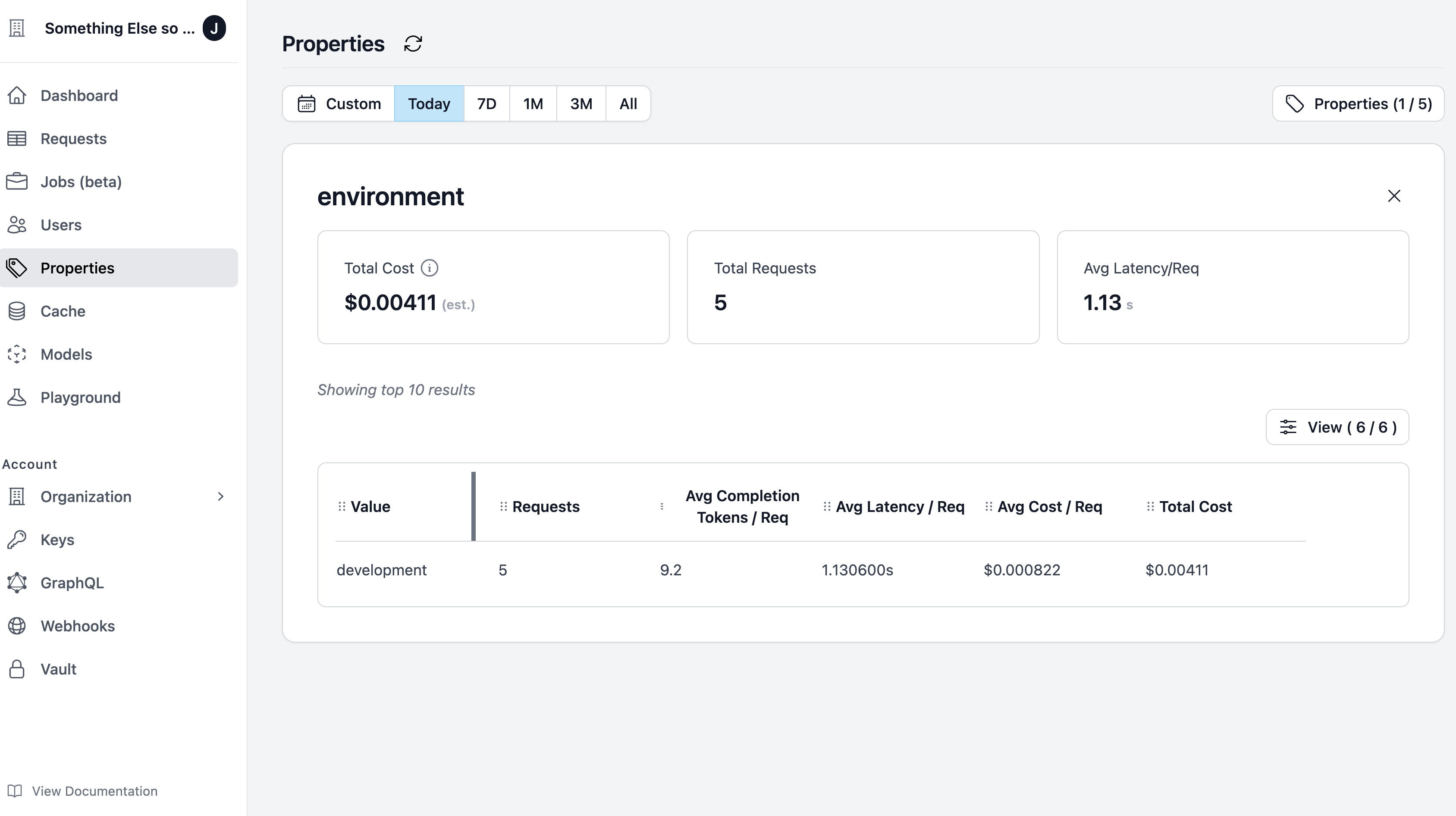
 Go to the `Properties` page, and select `Environment`. You will see metrics associated with this custom property.
 ## Use Case 2: User Segmentation
A common method of data segmentation is by `user type`. For example, you might want to distinguish between **paying** and **free** users to understand their behaviors and costs.
### Quick Start
To do this, create a `user_type` custom property and assign either **"paid"** or **"free"**.
```python theme={null}
client.chat.completions.create(
# ...
extra_headers={
"Helicone-Property-User-Type": "free",
}
)
```
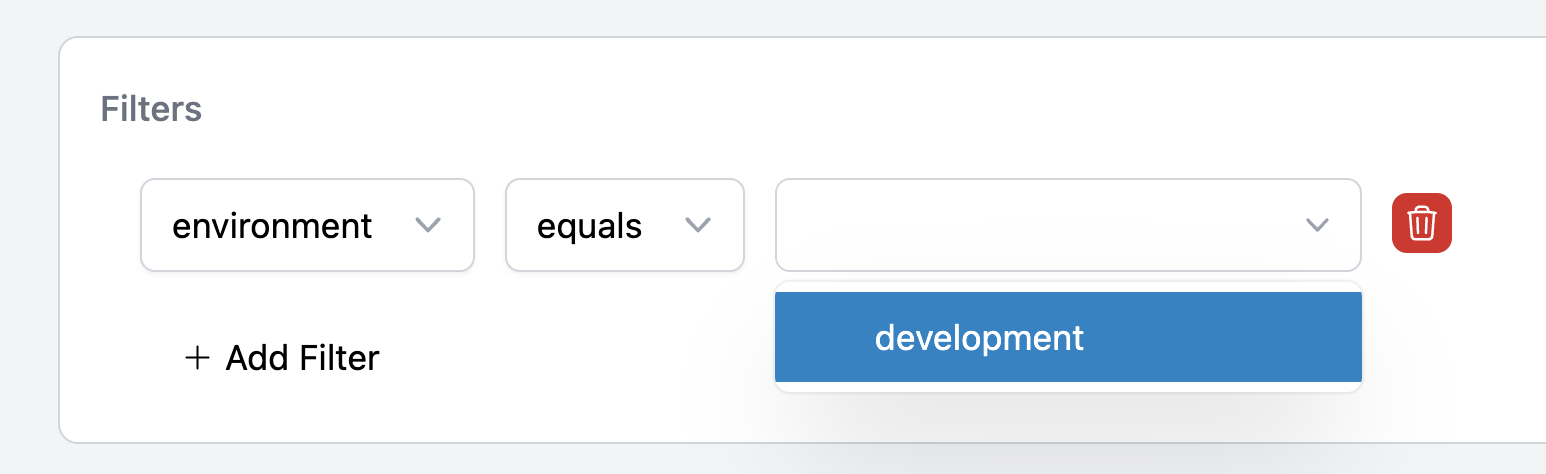
Then, you can filter by paid/free users, or view associated metrics in the same way.
Data segmentation can become powerful when you combine it with other
properties.{" "}
### Further Segmentation
Suppose you want to understand the behavior of paying users when they use a specific feature (i.e. spellcheck). You can add a `Feature` custom property.
```python theme={null}
client.chat.completions.create(
# ...
extra_headers={
"Helicone-Property-User-Type": "paid",
"Helicone-Property-Feature": "spellcheck",
}
)
```
You can create highly detailed segment by adding even more custom properties. For example, you may segment users further by `plan` and `Job ID`. There are no limits on the number of custom properties you can add.
```python theme={null}
client.chat.completions.create(
# ...
extra_headers={
"Helicone-Property-User-Type": "paid",
"Helicone-Property-Feature": "spellcheck",
"Helicone-Property-Plan": "enterprise",
"Helicone-Property-Job-UUID": "1234-5678-9012-3456",
}
)
```
### Analyzing Segmented Data
Segmented data can provide you with invaluable insights. For example, you might discover that your free users are using the spellcheck feature more than your paid users. This could signal an opportunity to market this feature more aggressively within your premium plans.
## Use Case 3: Advanced Segmentation
You can refine your segments further by incorporating other properties. The more detailed your segments, the more accurate insights you can derive. Here are some examples:
* Location: `Helicone-Property-Location`
* Device type: `Helicone-Property-Device-Type`
* Use activity level: `Helicone-Property-Activity-Level`
Remember, the key is to select properties that best align with your objectives and that will yield valuable insights upon analysis.
***
Additional questions or feedback? Reach out to
[help@helicone.ai](mailto:help@helicone.ai) or [schedule a
call](https://cal.com/team/helicone/helicone-discovery) with us.
## Use Case 2: User Segmentation
A common method of data segmentation is by `user type`. For example, you might want to distinguish between **paying** and **free** users to understand their behaviors and costs.
### Quick Start
To do this, create a `user_type` custom property and assign either **"paid"** or **"free"**.
```python theme={null}
client.chat.completions.create(
# ...
extra_headers={
"Helicone-Property-User-Type": "free",
}
)
```
Then, you can filter by paid/free users, or view associated metrics in the same way.
Data segmentation can become powerful when you combine it with other
properties.{" "}
### Further Segmentation
Suppose you want to understand the behavior of paying users when they use a specific feature (i.e. spellcheck). You can add a `Feature` custom property.
```python theme={null}
client.chat.completions.create(
# ...
extra_headers={
"Helicone-Property-User-Type": "paid",
"Helicone-Property-Feature": "spellcheck",
}
)
```
You can create highly detailed segment by adding even more custom properties. For example, you may segment users further by `plan` and `Job ID`. There are no limits on the number of custom properties you can add.
```python theme={null}
client.chat.completions.create(
# ...
extra_headers={
"Helicone-Property-User-Type": "paid",
"Helicone-Property-Feature": "spellcheck",
"Helicone-Property-Plan": "enterprise",
"Helicone-Property-Job-UUID": "1234-5678-9012-3456",
}
)
```
### Analyzing Segmented Data
Segmented data can provide you with invaluable insights. For example, you might discover that your free users are using the spellcheck feature more than your paid users. This could signal an opportunity to market this feature more aggressively within your premium plans.
## Use Case 3: Advanced Segmentation
You can refine your segments further by incorporating other properties. The more detailed your segments, the more accurate insights you can derive. Here are some examples:
* Location: `Helicone-Property-Location`
* Device type: `Helicone-Property-Device-Type`
* Use activity level: `Helicone-Property-Activity-Level`
Remember, the key is to select properties that best align with your objectives and that will yield valuable insights upon analysis.
***
Additional questions or feedback? Reach out to
[help@helicone.ai](mailto:help@helicone.ai) or [schedule a
call](https://cal.com/team/helicone/helicone-discovery) with us.