> ## Documentation Index
> Fetch the complete documentation index at: https://docs.helicone.ai/llms.txt
> Use this file to discover all available pages before exploring further.
# n8n Integration
> Use the Helicone Chat Model node in n8n workflows to route LLM requests through the AI Gateway with full observability.
## Introduction
The Helicone Chat Model is a community node for [n8n](https://n8n.io/) that provides a LangChain-compatible interface for AI workflows. Route requests to any LLM provider through the Helicone AI Gateway.
This is an n8n community node that integrates seamlessly with n8n's AI chain functionality.
## Prerequisites
* An n8n account (see [n8n installation docs](https://docs.n8n.io/hosting/) for setup options)
* A Helicone API key ([get one here](https://us.helicone.ai/settings/api-keys))
## Integration Steps
From your n8n interface:
1. Click the **user menu** (bottom left corner)
2. Select **Settings**
3. Go to **Community Nodes**
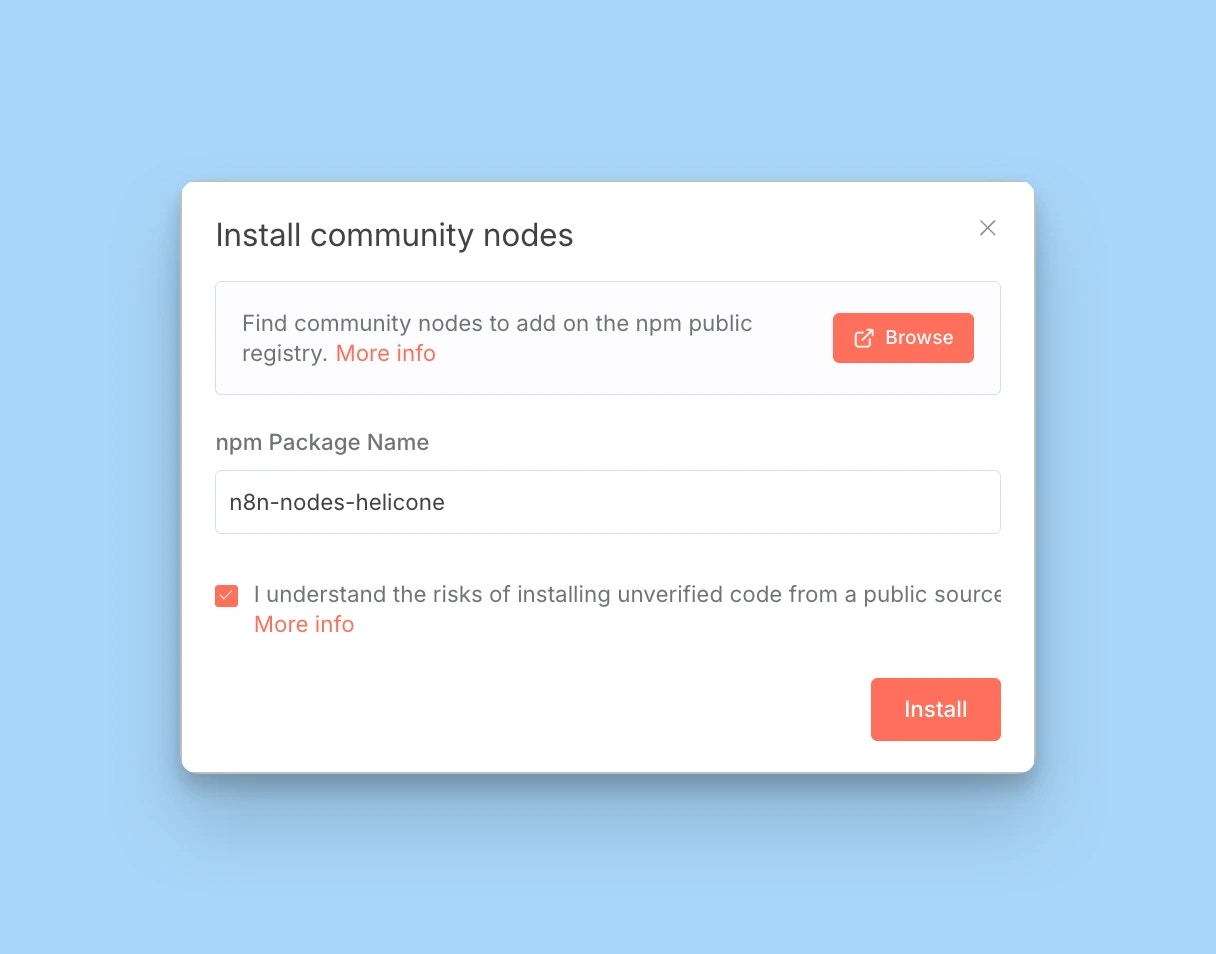
4. Click **Install a community node**
5. Enter the package name: `n8n-nodes-helicone`
6. Click **Install**
Wait \~30 seconds for installation. The node will appear in your nodes panel.
Learn more about installing community nodes in the [n8n documentation](https://docs.n8n.io/integrations/community-nodes/installation/).
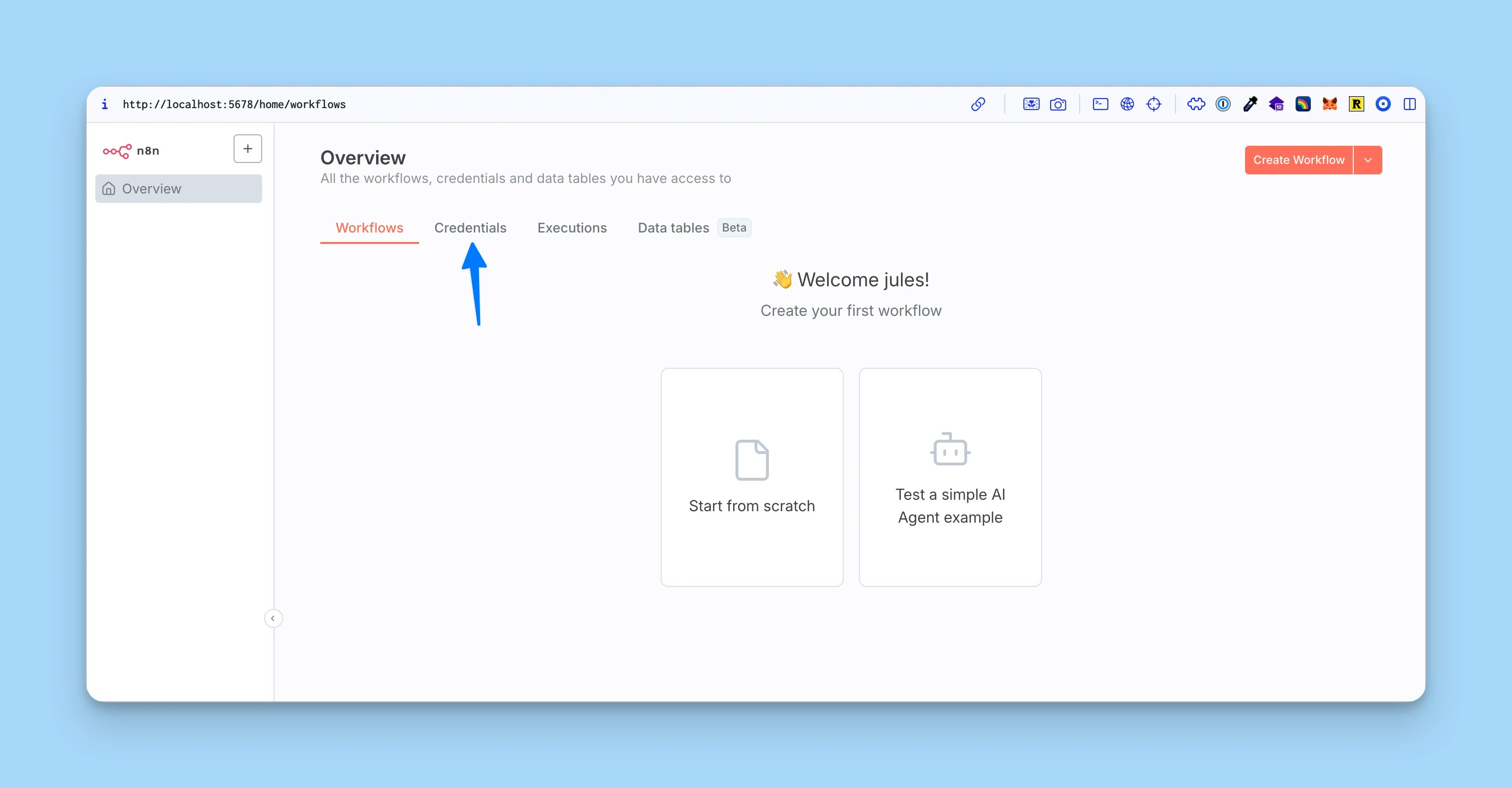
 Add your Helicone API key to n8n:
1. Go to **Settings** → **Credentials**
2. Click **Add Credential**
3. Search for "Helicone" and select **Helicone LLM Observability**
4. Enter your Helicone API key
5. Click **Save**
Add your Helicone API key to n8n:
1. Go to **Settings** → **Credentials**
2. Click **Add Credential**
3. Search for "Helicone" and select **Helicone LLM Observability**
4. Enter your Helicone API key
5. Click **Save**
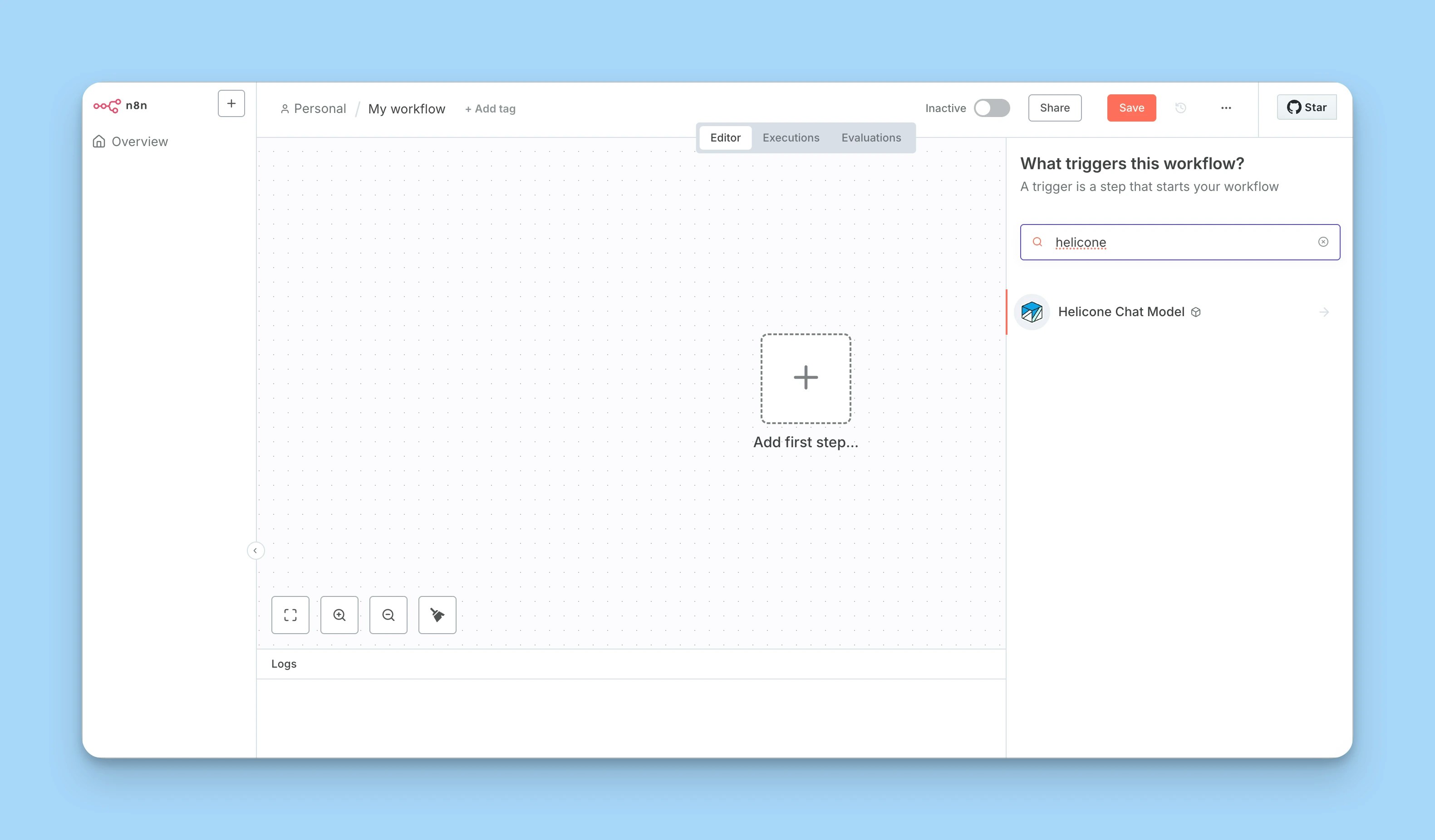
 1. Create a new workflow or open an existing one
2. Click "+" to add a node
3. Search for "Helicone Chat Model"
4. Configure the node:
* **Credentials**: Select your saved Helicone credentials
* **Model**: Choose any model from the [model registry](https://helicone.ai/models) (e.g., `gpt-4.1-mini`, `claude-3-opus-20240229`)
* **Options**: Configure temperature, max tokens, and other model parameters
1. Create a new workflow or open an existing one
2. Click "+" to add a node
3. Search for "Helicone Chat Model"
4. Configure the node:
* **Credentials**: Select your saved Helicone credentials
* **Model**: Choose any model from the [model registry](https://helicone.ai/models) (e.g., `gpt-4.1-mini`, `claude-3-opus-20240229`)
* **Options**: Configure temperature, max tokens, and other model parameters
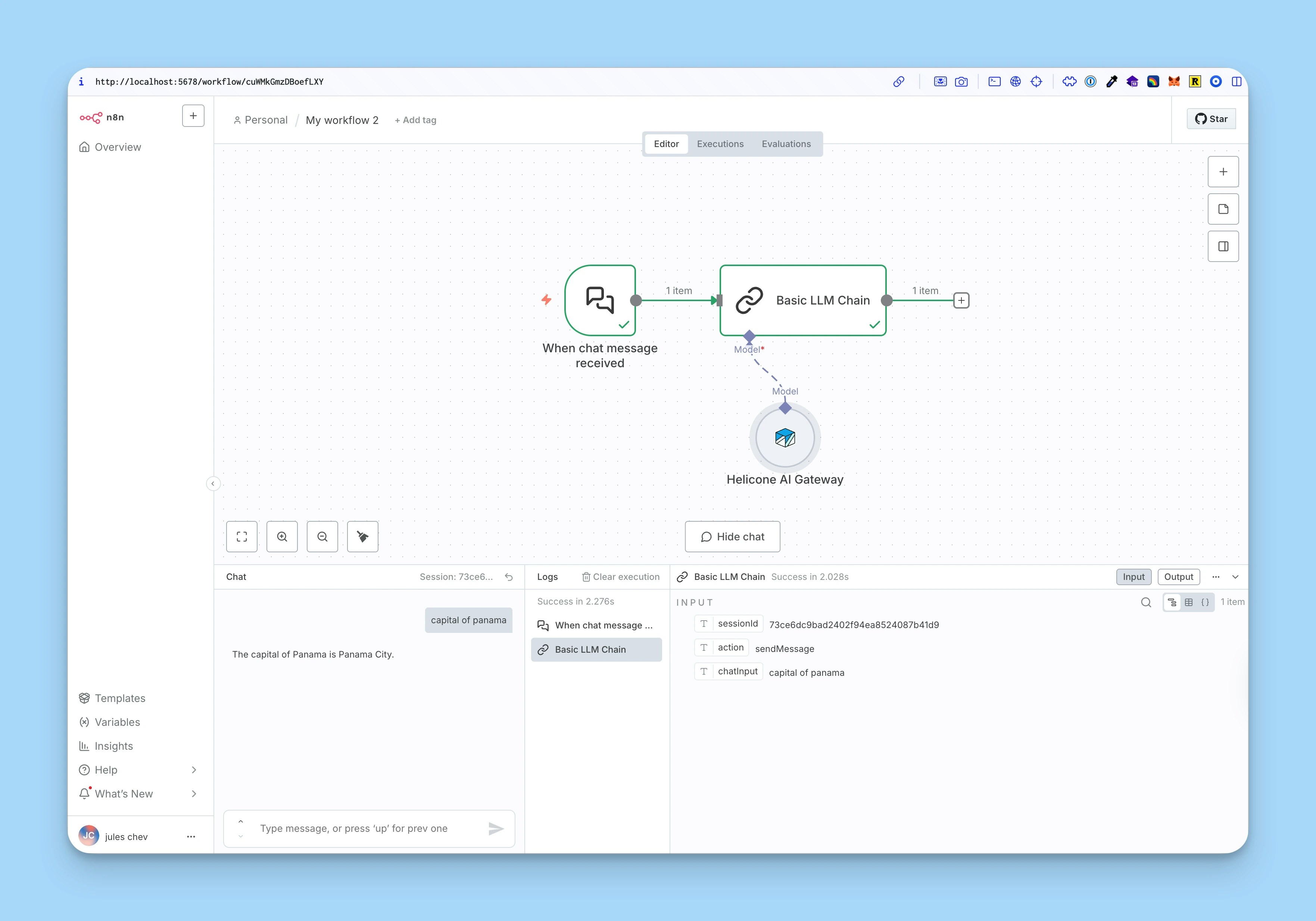
 The Helicone Chat Model node outputs a LangChain-compatible model that can be used with other AI nodes in n8n.
The Helicone Chat Model node is designed to work with n8n's AI chain functionality:
1. Connect the node to other AI nodes that accept `ai_languageModel` inputs
2. Build complex AI workflows with Chat nodes, Chain nodes, and other AI processing nodes
3. All requests are automatically logged to Helicone
Example workflow:
Chat Input → Helicone Chat Model → Chat Output
The Helicone Chat Model node outputs a LangChain-compatible model that can be used with other AI nodes in n8n.
The Helicone Chat Model node is designed to work with n8n's AI chain functionality:
1. Connect the node to other AI nodes that accept `ai_languageModel` inputs
2. Build complex AI workflows with Chat nodes, Chain nodes, and other AI processing nodes
3. All requests are automatically logged to Helicone
Example workflow:
Chat Input → Helicone Chat Model → Chat Output
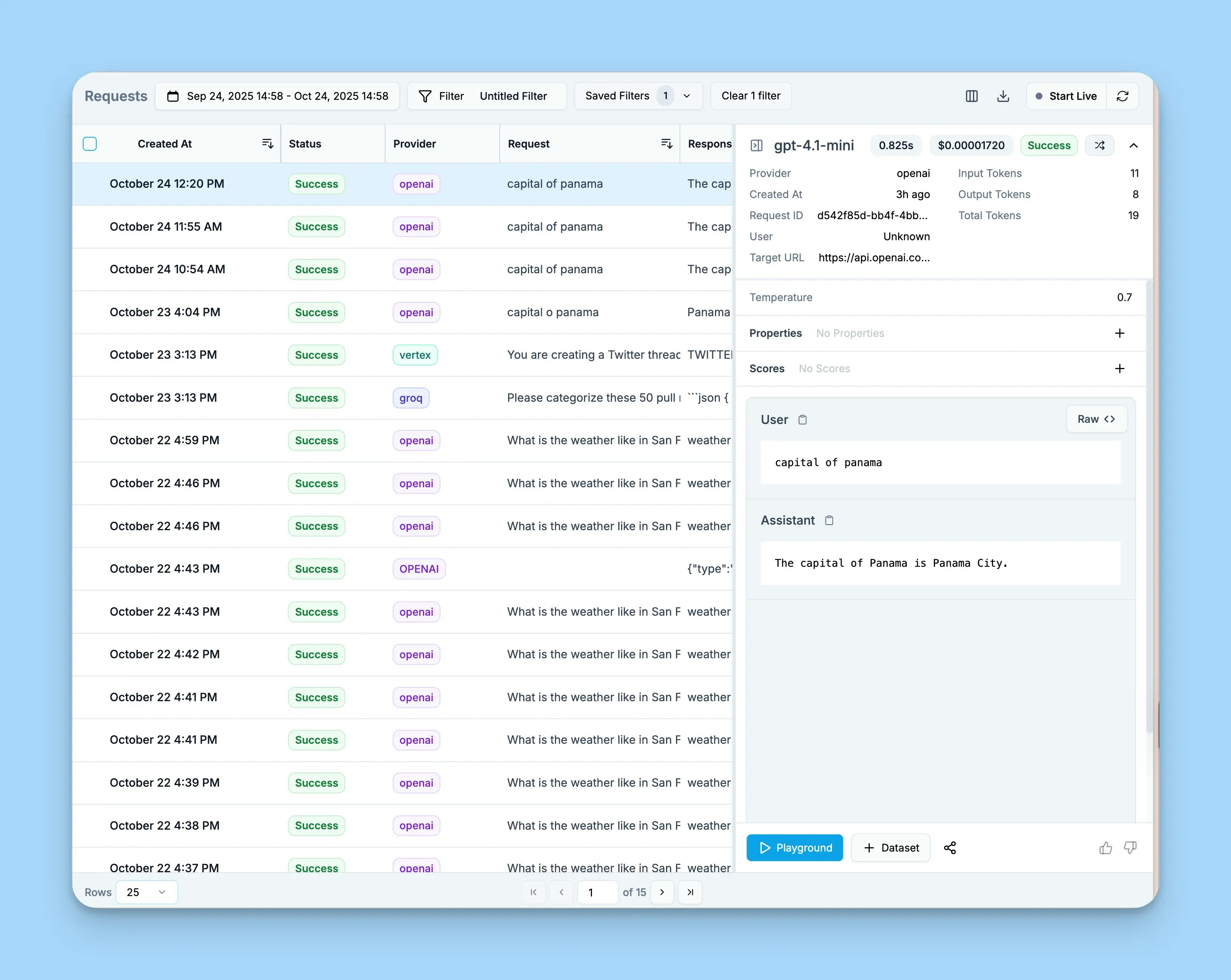
 Open your [Helicone dashboard](https://us.helicone.ai/dashboard) to see:
* All workflow requests logged automatically
* Token usage and costs per request
* Response time metrics
* Full request/response bodies
* Session tracking for multi-turn conversations
* Custom properties for filtering and analysis
Open your [Helicone dashboard](https://us.helicone.ai/dashboard) to see:
* All workflow requests logged automatically
* Token usage and costs per request
* Response time metrics
* Full request/response bodies
* Session tracking for multi-turn conversations
* Custom properties for filtering and analysis
 While you're here, why not give us a star on GitHub? It helps us a lot!
## Node Configuration
### Required Parameters
* **Model**: Any model supported by Helicone AI Gateway.
Examples: `gpt-4.1-mini`, `claude-opus-4-1`, `gemini-2.5-flash-lite`.
See all models in the [Helicone's model registry](https://helicone.ai/models)
### Model Options
* **Temperature** (0-2): Controls randomness in responses
* **Max Tokens**: Maximum tokens to generate
* **Top P** (0-1): Nucleus sampling parameter
* **Frequency Penalty** (-2 to 2): Reduces repetition
* **Presence Penalty** (-2 to 2): Encourages new topics
* **Response Format**: Text or JSON
* **Timeout**: Request timeout in milliseconds
* **Max Retries**: Number of retry attempts on failure
## Example Workflows
### Basic Chat Workflow
```
[Chat Input] → [Helicone Chat Model] → [Chat Output]
```
1. Add a **Chat Input** node (triggers on user message)
2. Add the **Helicone Chat Model** node
* Model: `gpt-4.1-mini`
* Temperature: 0.7
3. Add a **Chat Output** node to display the response
### Multi-Step AI Chain
```
[Webhook] → [Helicone Chat Model] → [Extract Data] → [Helicone Chat Model] → [Response]
```
1. Receive data via webhook
2. First Helicone Chat Model analyzes the input
3. Extract structured data
4. Second Helicone Chat Model generates a response
5. Both requests appear in Helicone dashboard with session tracking
### Workflow with Custom Properties
Configure the node with custom properties to track workflow metadata:
1. Open the **Helicone Chat Model** node
2. Expand **Helicone Options** → **Custom Properties**
3. Add a JSON object:
```json theme={null}
{
"workflow_name": "customer-onboarding",
"environment": "production",
"version": "2.1.0"
}
```
All requests from this node will include these properties in Helicone.
## Troubleshooting
### Node Installation Issues
* **Node not appearing**: Wait 30 seconds after installation, then refresh n8n
* **Installation failed**: Check your n8n instance has internet access
* **Version conflicts**: Ensure you're running a compatible n8n version (>= 1.0)
### Authentication Errors
* **Invalid API key**: Verify your Helicone API key starts with `sk-helicone-`
* **403 Forbidden**: Ensure your API key has write access enabled
* **Provider not configured**: Check the name of the model is exactly the [model ID expected by the gateway](https://helicone.ai/models). If you've added your own provider keys, make sure they are correctly set in [your Helicone dashboard](https://us.helicone.ai/settings/providers)
### Model Errors
* **Model not found**: Check the exact model name at [Helicone's model registry](https://helicone.ai/models)
* **Model unavailable**: Verify provider access in your Helicone account
* **Different naming**: Providers use different conventions (e.g., OpenAI uses `gpt-4o-mini`, while the gateway uses `gpt-4.1-mini`)
### Getting Help
* [n8n Community Forum](https://community.n8n.io/)
* [Helicone Documentation](https://docs.helicone.ai)
* [Helicone Discord](https://discord.gg/7aSCGCGUeu)
* [GitHub Repository](https://github.com/Helicone/n8n-nodes-helicone)
Looking for a framework or tool not listed here? [Request it here!](https://forms.gle/E9GYKWevh6NGDdDj7)
## Related Documentation
Learn about Helicone's AI Gateway features and capabilities
Configure intelligent routing and automatic failover
Browse all available models and providers
Explore caching, session tracking, and more
Add metadata to track and filter your requests
Track multi-turn conversations and user sessions
While you're here, why not give us a star on GitHub? It helps us a lot!
## Node Configuration
### Required Parameters
* **Model**: Any model supported by Helicone AI Gateway.
Examples: `gpt-4.1-mini`, `claude-opus-4-1`, `gemini-2.5-flash-lite`.
See all models in the [Helicone's model registry](https://helicone.ai/models)
### Model Options
* **Temperature** (0-2): Controls randomness in responses
* **Max Tokens**: Maximum tokens to generate
* **Top P** (0-1): Nucleus sampling parameter
* **Frequency Penalty** (-2 to 2): Reduces repetition
* **Presence Penalty** (-2 to 2): Encourages new topics
* **Response Format**: Text or JSON
* **Timeout**: Request timeout in milliseconds
* **Max Retries**: Number of retry attempts on failure
## Example Workflows
### Basic Chat Workflow
```
[Chat Input] → [Helicone Chat Model] → [Chat Output]
```
1. Add a **Chat Input** node (triggers on user message)
2. Add the **Helicone Chat Model** node
* Model: `gpt-4.1-mini`
* Temperature: 0.7
3. Add a **Chat Output** node to display the response
### Multi-Step AI Chain
```
[Webhook] → [Helicone Chat Model] → [Extract Data] → [Helicone Chat Model] → [Response]
```
1. Receive data via webhook
2. First Helicone Chat Model analyzes the input
3. Extract structured data
4. Second Helicone Chat Model generates a response
5. Both requests appear in Helicone dashboard with session tracking
### Workflow with Custom Properties
Configure the node with custom properties to track workflow metadata:
1. Open the **Helicone Chat Model** node
2. Expand **Helicone Options** → **Custom Properties**
3. Add a JSON object:
```json theme={null}
{
"workflow_name": "customer-onboarding",
"environment": "production",
"version": "2.1.0"
}
```
All requests from this node will include these properties in Helicone.
## Troubleshooting
### Node Installation Issues
* **Node not appearing**: Wait 30 seconds after installation, then refresh n8n
* **Installation failed**: Check your n8n instance has internet access
* **Version conflicts**: Ensure you're running a compatible n8n version (>= 1.0)
### Authentication Errors
* **Invalid API key**: Verify your Helicone API key starts with `sk-helicone-`
* **403 Forbidden**: Ensure your API key has write access enabled
* **Provider not configured**: Check the name of the model is exactly the [model ID expected by the gateway](https://helicone.ai/models). If you've added your own provider keys, make sure they are correctly set in [your Helicone dashboard](https://us.helicone.ai/settings/providers)
### Model Errors
* **Model not found**: Check the exact model name at [Helicone's model registry](https://helicone.ai/models)
* **Model unavailable**: Verify provider access in your Helicone account
* **Different naming**: Providers use different conventions (e.g., OpenAI uses `gpt-4o-mini`, while the gateway uses `gpt-4.1-mini`)
### Getting Help
* [n8n Community Forum](https://community.n8n.io/)
* [Helicone Documentation](https://docs.helicone.ai)
* [Helicone Discord](https://discord.gg/7aSCGCGUeu)
* [GitHub Repository](https://github.com/Helicone/n8n-nodes-helicone)
Looking for a framework or tool not listed here? [Request it here!](https://forms.gle/E9GYKWevh6NGDdDj7)
## Related Documentation
Learn about Helicone's AI Gateway features and capabilities
Configure intelligent routing and automatic failover
Browse all available models and providers
Explore caching, session tracking, and more
Add metadata to track and filter your requests
Track multi-turn conversations and user sessions