> ## Documentation Index
> Fetch the complete documentation index at: https://docs.helicone.ai/llms.txt
> Use this file to discover all available pages before exploring further.
# Customer Portal
> Provide customers with a dedicated portal to view and manage their LLM usage. Oversee customer access, set rate limits, and monitor usage while allowing customers to track their own metrics.
## Introduction
Do you have a product that charges customers based on LLM usage?
Whether you are hosting your own model or using one of the top model providers, you and your team can easily manage your customers and their usage with Helicone's Customer Portal.
Helicone's Customer Portal is a proxy that sits between your model and your customers.
{" "}
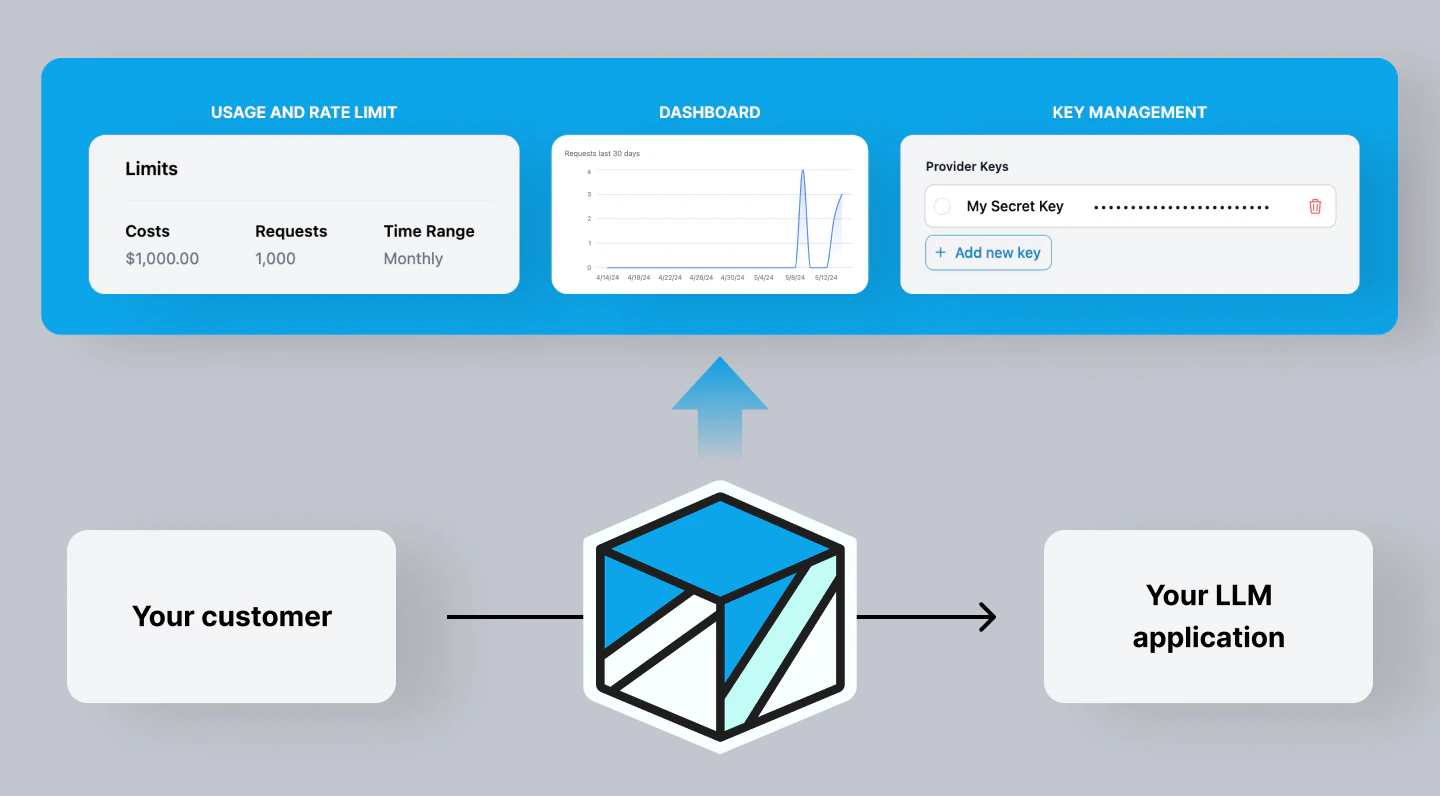 * Your customer uses your provider key (that Helicone securely encrypted) to access
your LLM application. - Helicone logs all requests and extracts the data in order
to bring customer insights to you. - Getting access to your customer's usage allows
you to set up billing accordingly.{" "}
**Proxy is not required for this feature.** If you prefer not to use a proxy,
reach out to us at [engineering@helicone.ai](mailto:engineering@helicone.ai).
* Your customer uses your provider key (that Helicone securely encrypted) to access
your LLM application. - Helicone logs all requests and extracts the data in order
to bring customer insights to you. - Getting access to your customer's usage allows
you to set up billing accordingly.{" "}
**Proxy is not required for this feature.** If you prefer not to use a proxy,
reach out to us at [engineering@helicone.ai](mailto:engineering@helicone.ai).
 ### Feature Highlight
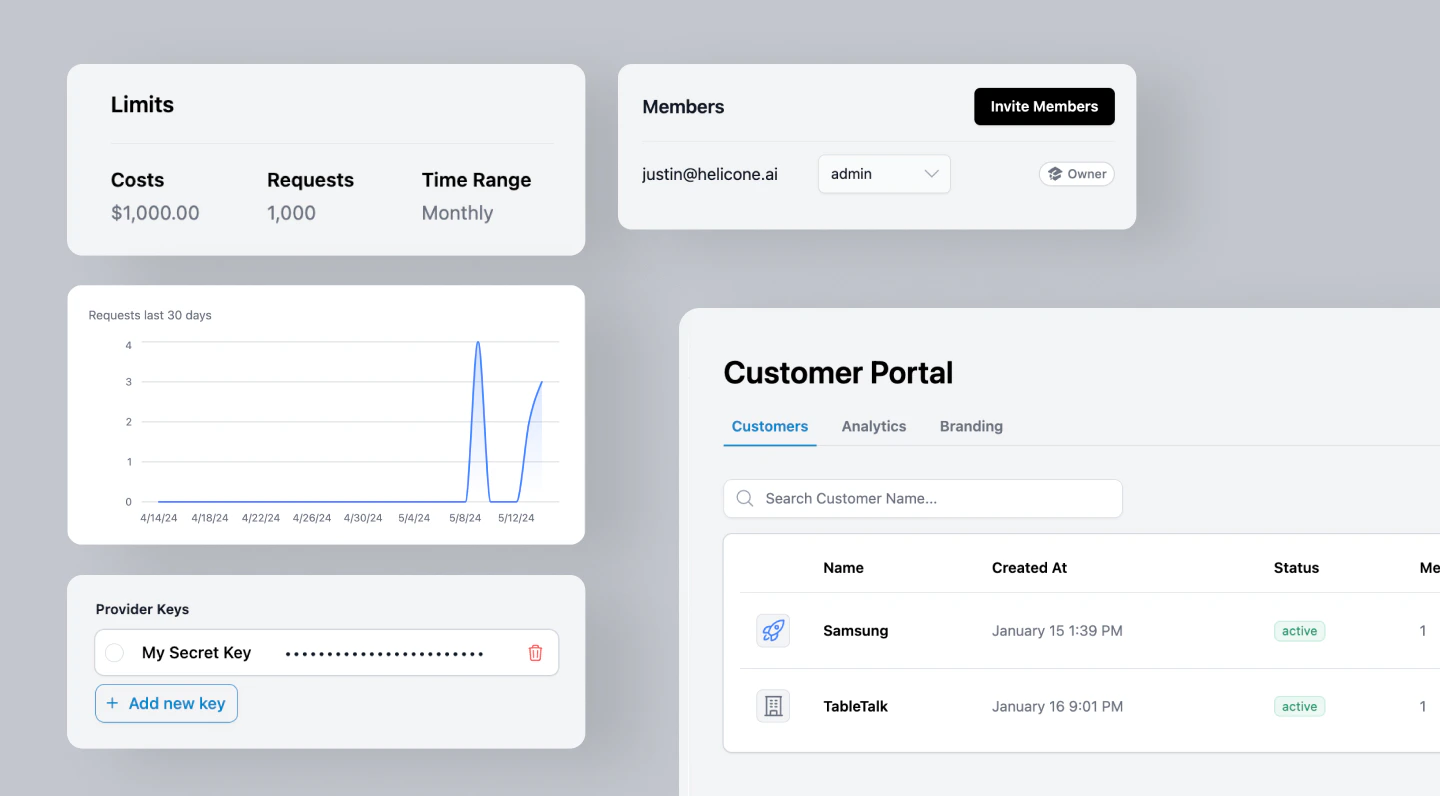
* Easily share your Helicone dashboards and analytics with your customers.
* Access built-in customer usage dashboard, billing system and usage tracking by customers.
* Quick and easy set-up in minutes.
As an example, you can use Customer Portal to share full access to your model with university students, share your provider key securely and rate limit them by setting cost and request constraints.
## Getting Access
Anyone on the Enterprise plan have access to Customer Portal. Users on the Free and Growth plan can [contact us](https://www.helicone.ai/features/customer-portal) for pricing.
Contact us for pricing.
## Quick Start
### Step 1: Adding your customers
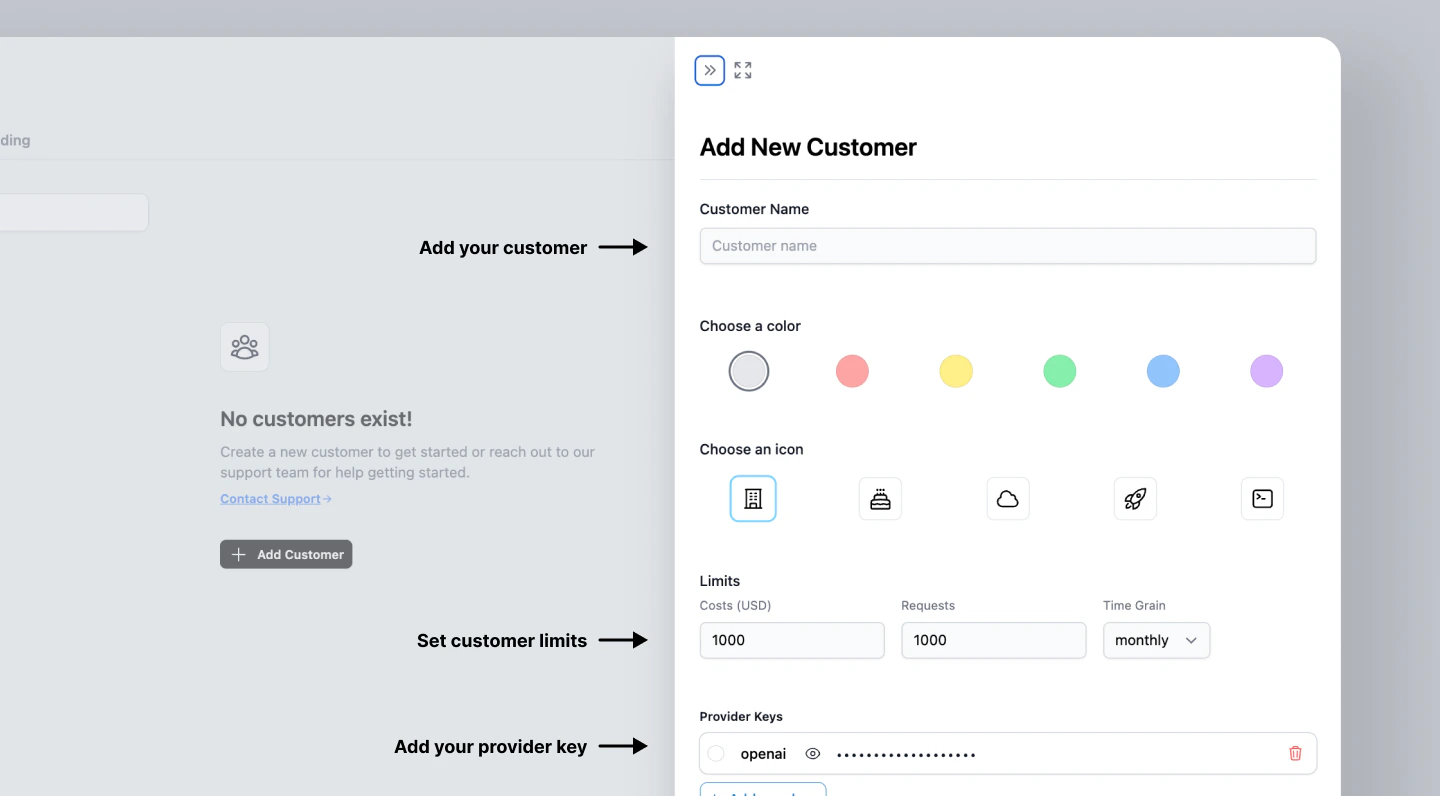
Go to `Customer Portal` from your left nav, and click `Add Customer`. Set a rate limit for your customer, then add a provider key.
Don't worry, your customers will create their own proxy key that maps to your
provider key, and will not be able to see the exact key.{" "}
### Feature Highlight
* Easily share your Helicone dashboards and analytics with your customers.
* Access built-in customer usage dashboard, billing system and usage tracking by customers.
* Quick and easy set-up in minutes.
As an example, you can use Customer Portal to share full access to your model with university students, share your provider key securely and rate limit them by setting cost and request constraints.
## Getting Access
Anyone on the Enterprise plan have access to Customer Portal. Users on the Free and Growth plan can [contact us](https://www.helicone.ai/features/customer-portal) for pricing.
Contact us for pricing.
## Quick Start
### Step 1: Adding your customers
Go to `Customer Portal` from your left nav, and click `Add Customer`. Set a rate limit for your customer, then add a provider key.
Don't worry, your customers will create their own proxy key that maps to your
provider key, and will not be able to see the exact key.{" "}
 ### Step 2: Your customer will generate proxy keys
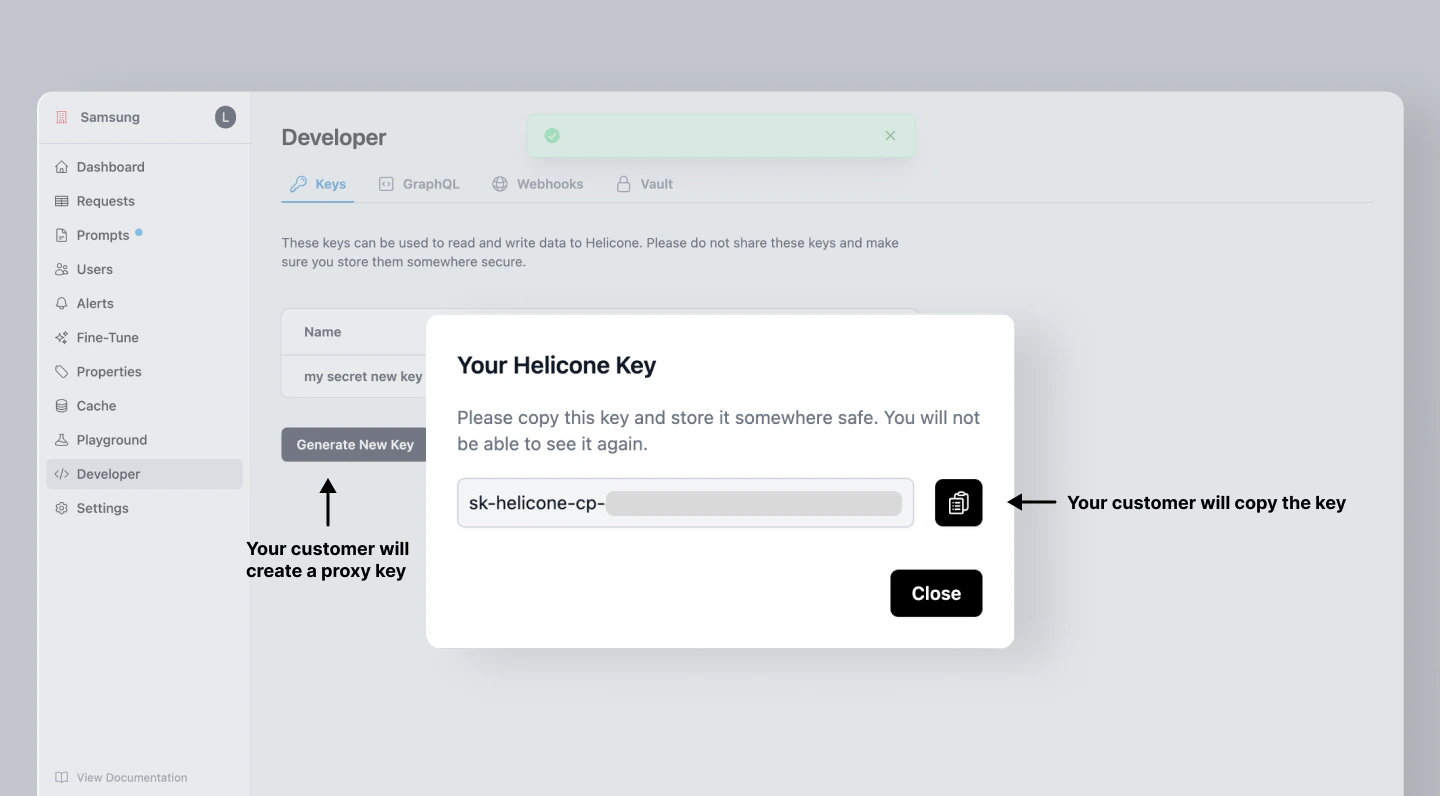
Once your customer [creates a Helicone account](https://us.helicone.ai/signup), they will see their usage on the Helicone dashboard.
Next, they can go to the `Developer` tab and click `Generate New Key`.
### Step 2: Your customer will generate proxy keys
Once your customer [creates a Helicone account](https://us.helicone.ai/signup), they will see their usage on the Helicone dashboard.
Next, they can go to the `Developer` tab and click `Generate New Key`.
 ### Step 3: Your customer will use the proxy key
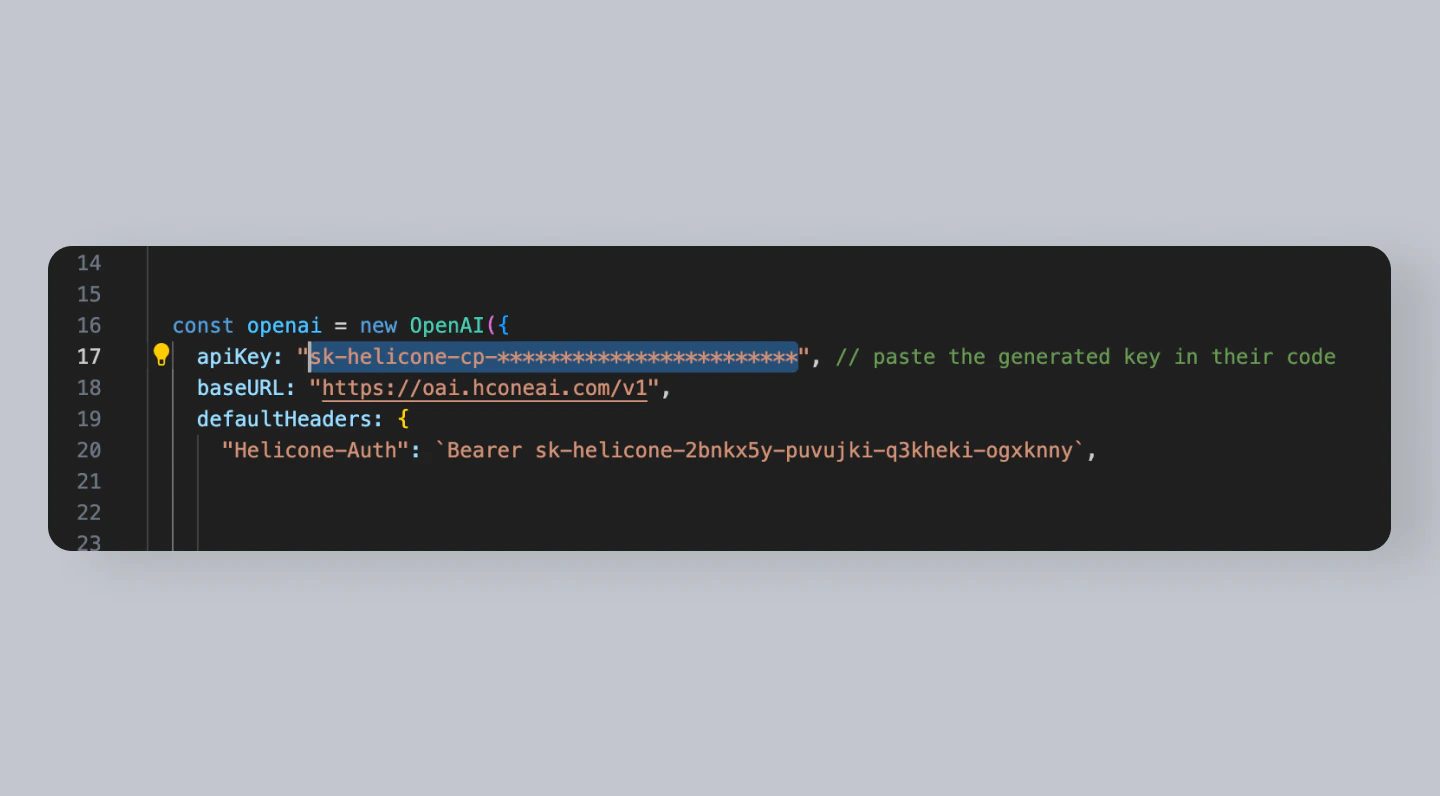
Your customers will paste their proxy key in the code to start logging their requests in Helicone.
### Step 3: Your customer will use the proxy key
Your customers will paste their proxy key in the code to start logging their requests in Helicone.
 ### Step 4: View your customer's usage
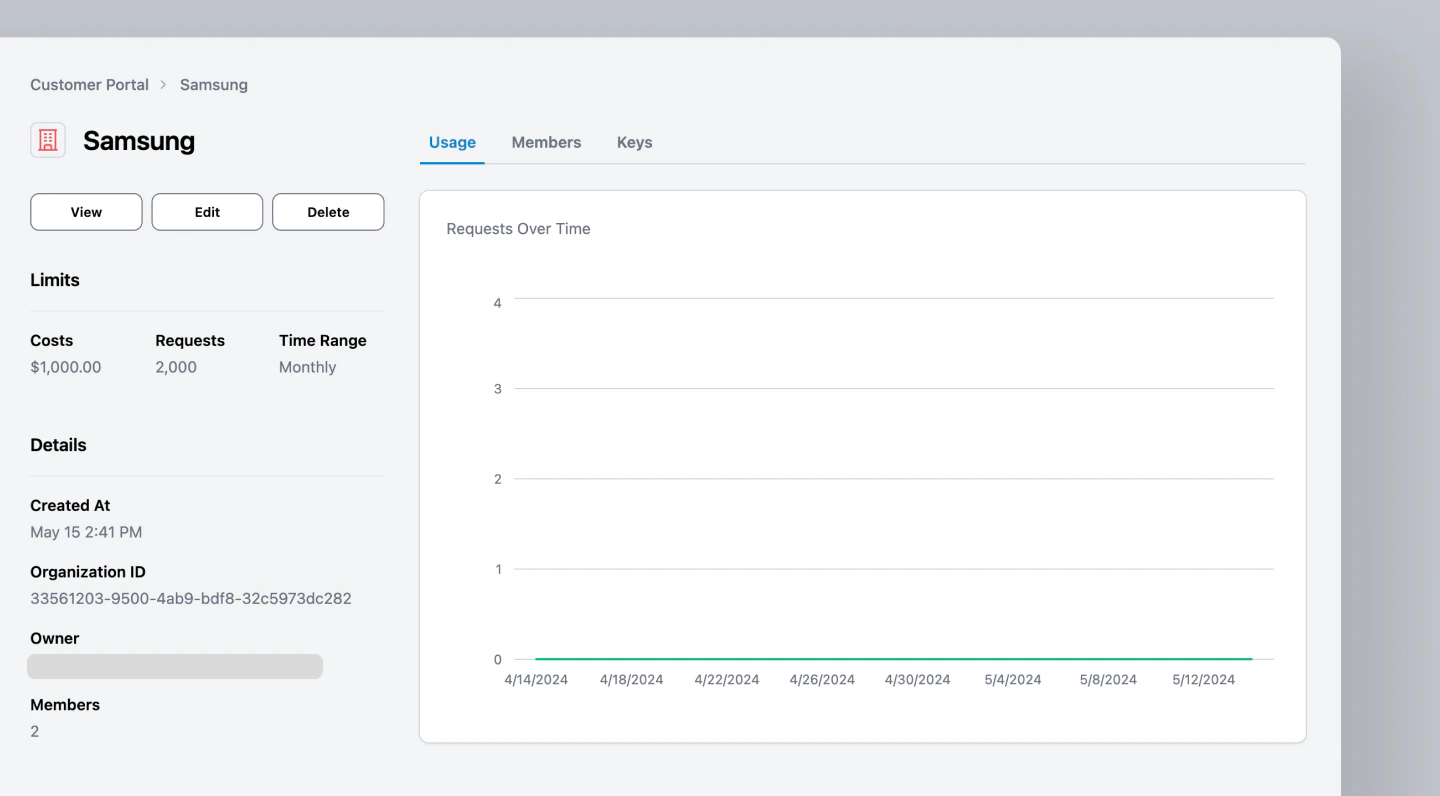
Once your customer starts logging their requests in Helicone, you can view their usage on your Helicone Customer Portal dashboard.
### Step 4: View your customer's usage
Once your customer starts logging their requests in Helicone, you can view their usage on your Helicone Customer Portal dashboard.
 ## Guides
Sell a fine-tuned model to certain customers.
Coming soon.
***
Additional questions or feedback? Reach out to
[help@helicone.ai](mailto:help@helicone.ai) or [schedule a
call](https://cal.com/team/helicone/helicone-discovery) with us.
## Guides
Sell a fine-tuned model to certain customers.
Coming soon.
***
Additional questions or feedback? Reach out to
[help@helicone.ai](mailto:help@helicone.ai) or [schedule a
call](https://cal.com/team/helicone/helicone-discovery) with us.